
Creative
Export a music video from your patch in Infinite
Load a track or build a beat, patch audio-reactive visuals, and export a synced MP4 or MOV music video in Infinite using live recording or Offline Render.
on this page
Once you have a beat or a finished song and a visual patch that moves with it, the next step is turning that live canvas into a video file you can upload or share. In Infinite, you do not need a separate screen recorder or video editor to export a music video. The Output node records both picture and sound together into a synced .mp4 or .mov file, either live while you perform or frame by frame with Offline Render.
You can follow this workflow with a finished track from another DAW or with a patch you built inside Infinite.
1. Bring in your audio with Audio File or Mixer
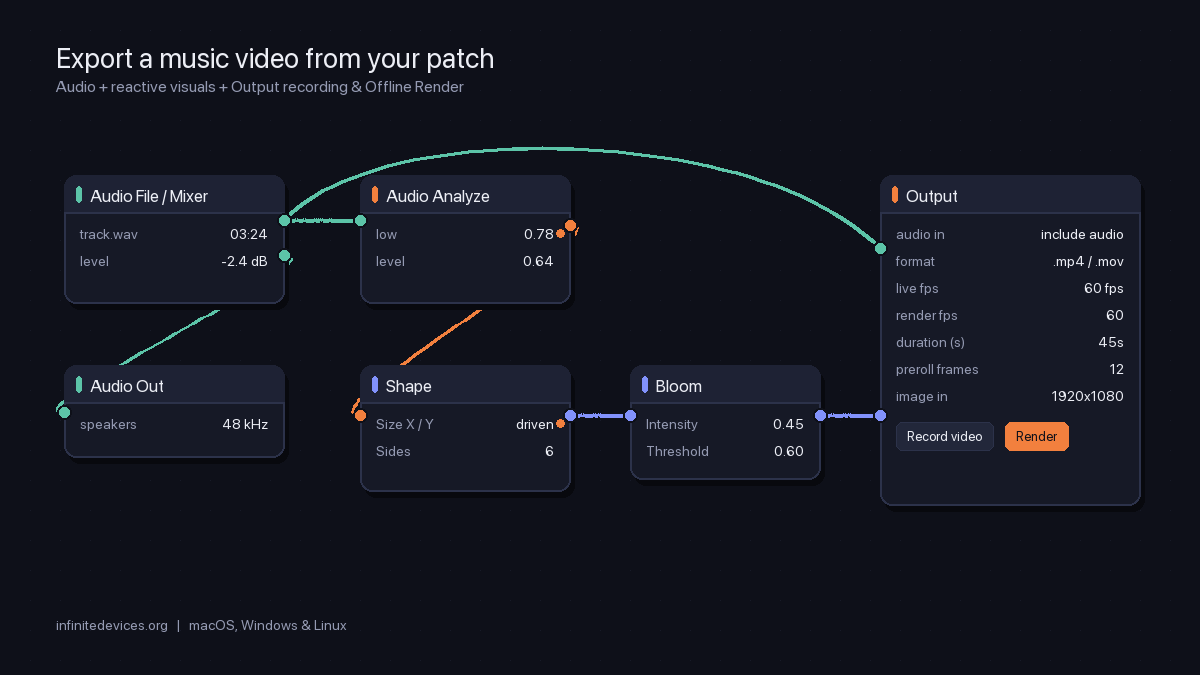
If you already have a finished song as a WAV or MP3, drop an Audio File node onto the canvas and load your track. Connect its audio output pin to Audio Out so you can hear it through your speakers or headphones.
If you built your music inside Infinite with Drum Sequencer, Analog, or Sampler, your instruments should already be combined into a Mixer node feeding Audio Out. Either way, you now have a single audio cable carrying your full mix.
2. Connect visuals that react to the music
Next, build a simple visual chain on the right side of the canvas, or open a starter patch from the preset library to see one already wired up:
- Add a Shape node, connect it through a Bloom node for a soft glow, and patch Bloom into the image input of an Output node.
- Drop an Audio Analyze node onto the canvas and connect a second cable from your Audio File or Mixer into Audio Analyze.
- Drag from the low or level output of Audio Analyze onto a control on Shape (such as Size X and Size Y) or Bloom (Intensity). Controls driven by music show an orange modulation dot.
If you are brand new to audio-reactive patching, our guide to making your first audio-reactive visual walks through tuning Depth and combining LFO movement with sound.
3. Send your sound to the Output node
This is the step people miss most often when exporting a music video: Output needs its own audio connection if you want sound in your exported file.
Connect a cable from your Audio File or Mixer audio output into the audio input pin on Output. On the Output node body, make sure include audio is ticked. You will see a small label under the checkbox confirming which audio source is connected.
Before you record, pick your file format on Output:
- Choose
.mp4for YouTube, Instagram, or quick sharing with a small file size. - Choose
.movwhen you want a high-bitrate file for further editing.
4. Choose live recording or Offline Render
Infinite gives you two ways to capture your music video from Output:
- Live recording (
Record video). Set the frame rate slider (up to60 fps), press play on your track, and click Record video. Every tweak you make to knobs, colours, or cameras is captured in real time. Click Stop recording when the song finishes. If you see a dropped-frame warning on a heavy visual patch, switch to Offline Render instead. - Offline Render (
Render). Under the Offline Render section on Output, type your render fps (such as30or60) and duration (s) using the15s,30s,45s, or60spreset buttons or any length up to an hour. If your patch uses trails or feedback that need a moment to build up before frame one, add a few preroll frames. Click Render, and Infinite steps through the song cleanly without dropping a single frame.
If you have arranged a longer song in the Timeline or performed clips in the Session view, you can also click Render in the Timeline (or Render Take in Session) to export the marked song range straight to .mp4 or .mov.
5. Check your file and share it
Once Finalizing... finishes, open your exported .mp4 or .mov to check that the bass hits line up with the picture and the audio levels sit cleanly without clipping. Note that if you run Infinite as a plugin inside another DAW, live video recording and offline video rendering are disabled because the host DAW owns the bounce; use the standalone Infinite app whenever you want to export video.
Ready to turn a track into a visual? Download Infinite for macOS, Windows, or Linux, or open a starter visual from the preset library and patch your own song into Audio File.