
Product
Non-destructive 2D layer compositing in Infinite
How Infinite's 2D View combines non-destructive 2D layer compositing with live node outputs, 36 blend modes, 28 adjustment layers, and PSD/ORA export.
on this page
Most visual environments split layout from synthesis. You build a shader, particle field, or 3D render in one application, bounce frames to disk, and arrange typography, masks, and colour grades in a separate layer editor. When the underlying simulation changes, you render again and re-import.
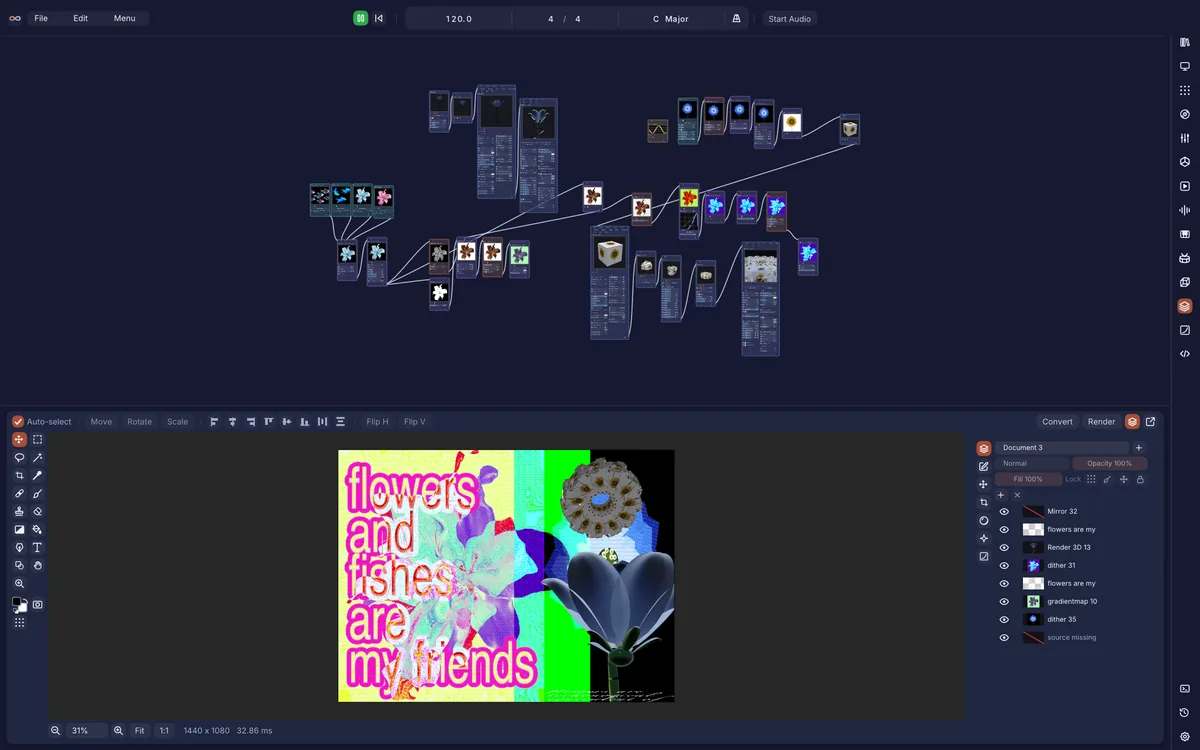
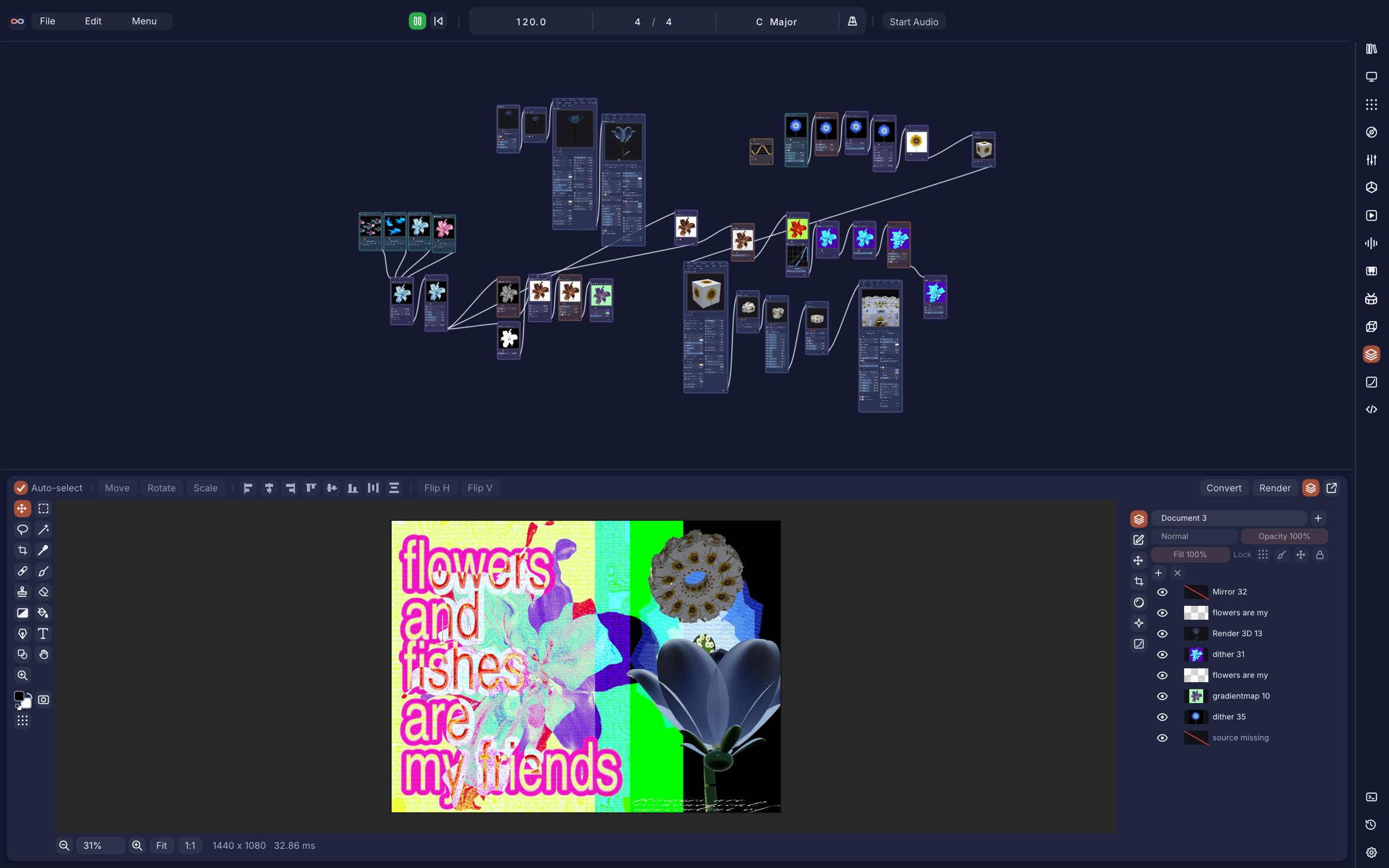
In Infinite, the 2D View (Shift+2, backed by Scene2DNode) brings non-destructive 2D layer compositing onto the same canvas as the audio and visual node graph. Instead of flattening sources before layout, a Node layer references a live graph node by ID, so shaders, 3D renders, and audio-reactive visuals keep animating inside a familiar layer stack with masks, blend modes, adjustment layers, and layered file export.
Why compositing lives inside a single node
On a normal patch canvas, placing four visual elements with custom positions, masks, and blends used to require separate Transform, Blend, and Layer Stack nodes for every item. Scene2DNode replaces that wiring clutter with one document that holds the layer tree, canvas dimensions, background, guides, and snapping, then outputs the finished composite to an Output node or any downstream visual processor.
Because the graph remains the source of truth, a Node layer never writes pixels back to the node it references. You can place the same live node in multiple layers with different crops, blend modes, or masks, and if a referenced node is removed from the patch, its row stays intact as source missing rather than breaking the stack.
Seven layer kinds and 3D card layers
The Layers panel organises compositions using seven layer kinds, plus optional 3D card placement on any layer:
Node: references any live 2D or 3D output from the graph without extra cables, with fit modes, nearest or linear sampling, and non-destructive side crop.Fill: renders solid colour, linear, radial, reflected, diamond, or conical gradients (up to 8 colour stops), grain noise, or bitmap fills.Group: nests child layers with either isolated blending or pass-through compositing.Paint: stores tiled RGBA surfaces for raster brushwork, erasing, and optional lit relief shading.Vector: holds editable pen paths, live shapes (rectangle, ellipse, polygon, star, line), boolean combinations, and imported SVGs.Text: renders point or wrapped box text with alignment, kerning, tracking, leading, baseline shift, outlines, and paragraph spacing.Adjust: applies non-destructive tonal or stylised processing to the composite beneath it, scoped by masks or clipping.
Any layer can also toggle is3d to behave as a 3D card in depth (Z, X/Y rotation, orientation, and anchor depth) viewed through the composition camera. This lets you tilt a Render 3D output or video stream behind flat 2D typography without leaving the 2D View. You can explore how visualisers and designers combine these layers with audio nodes on the Infinite artists page.
Thirty-nine tools with standard shortcuts
The 2D View workspace pairs a left tool strip and flyout sub-tools (39 tools in total) with a top context bar for alignment, flips, transforms, and tool options. Core tools map directly to common desktop shortcuts:
- Selection and framing:
Move (V),Marquee (M),Lasso (L),Magic Wand (W),Crop (C), andEyedropper (I). - Raster paint and retouch:
Healing Brush (J),Brush (B),Clone Stamp (S),Eraser (E), andGradient (G). - Vector and typography:
Pen (P),Direct Select (A),Shape (U), andText (T). - Viewport navigation:
Hand (H)andZoom (Z).
Drag and drop an SVG file onto the canvas and 2D View converts it straight into a Vector layer, preserving editable bounds and transform controls instead of baking it to pixels on import.
Blend modes, adjustment layers, and Drive modulation
Every layer supports 36 blend modes, independent Opacity and Fill sliders (so layer effects stay opaque when fill is reduced), clipping to the layer below, pixel masks, vector masks, live node masks, and grey-channel Blend If sliders.
For grading and stylisation, Scene2DNode includes 28 adjustment layers spanning colour and tonal tools (such as Levels, Curves, Colour Balance, Vibrance, Selective Colour, Channel Mixer, White Balance, Split Toning, Shadows / Highlights, and .cube Colour Lookup) alongside graphic processors (Pixelate, Halftone, Dither, Threshold, Gradient Map, Posterize).
Each adjustment layer can subscribe to one of four modulatable knobs, Drive A..D, interpolating between a base and target amount in real time. Combined with per-layer modulation slots for position, scale, rotation, opacity, typography, and effect parameters, an audio envelope from the Infinite node library or an automated DAW parameter via the Infinite VST3 and AU plugin can drive typography, blend opacity, or colour grades frame by frame.
Layer styles and the Smart Filter effect stack
Beyond blending and adjustments, every layer carries 10 layer styles:
Drop Shadow, Inner Shadow, Outer Glow, Stroke, Colour Overlay, Inner Glow, Bevel, Gradient Overlay, Satin, and Pattern Overlay.
You can stack multiple instances of the same style (for example, dual strokes or layered shadows) and control contours, angles, spreads, and relief materials.
Beneath the layer styles sits a drag-to-reorder Smart Filter effect stack. Each slot runs either a native adjustment or one of 18 node effects owned by the stack, including Gaussian Blur, Displace, Kaleidoscope, Bloom, Fluid, Reaction Diffusion, Field Pixel, and Remove Background. Each filter entry has its own opacity, blend mode, optional stack mask, and a toggle to expose the underlying node onto the main patch canvas whenever you want to wire extra modulators into it.
PSD, ORA, and SVG workflows
When you need to hand a layout off to another image editor or bring painted assets into a patch, 2D View supports PSD (Photoshop) and ORA (OpenRaster) import and export alongside SVG drop-to-vector-layer.
On import, pixel layers come in as Paint layers inside their groups with opacity, blend modes, visibility, clipping, and (for PSD) pixel masks preserved. On export, untransformed Paint layers keep their own pixel buffers and separate masks, while live Node, Fill, Vector, Text, and transformed layers render cleanly at document resolution into the exported file.
Honest limits
- Single artboard per document: Each
Scene2DNodeholds one canvas size and ratio; multi-page layouts use separateScene2DNodedocuments on the patch canvas. - No external adjustment round-trip in PSD/ORA: Adjustment layers do not carry standalone pixel buffers, so they are omitted when exporting layered PSD or ORA files rather than converted into native Photoshop adjustment records.
- Non-paint layers flatten on layered export: Because
Node,Vector,Text, and transformed layers depend on Infinite's live graph and vector/text renderers, PSD and ORA export renders them as rasterised layers at document size. - No Liquify or Warp Mesh yet: Corner-pin distort (
warp) and 3D card perspective are supported, while free-form mesh warping and puppet deformation are not currently part of the toolset.