
Product
Blender keymap 3D scene composition in Infinite's 3D View
Use the Blender keymap 3D scene composition workflow in Infinite's 3D View with 6 light types, Principled BSDF materials, HDRI worlds, and Metal path tracing.
on this page
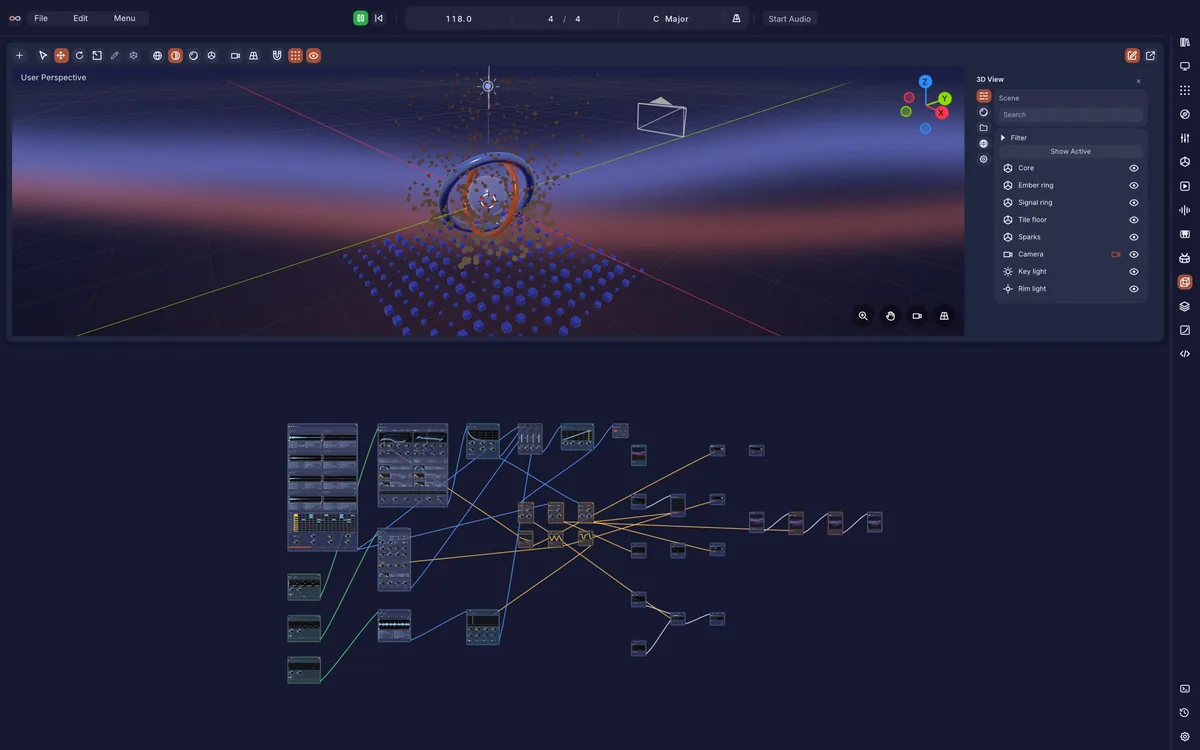
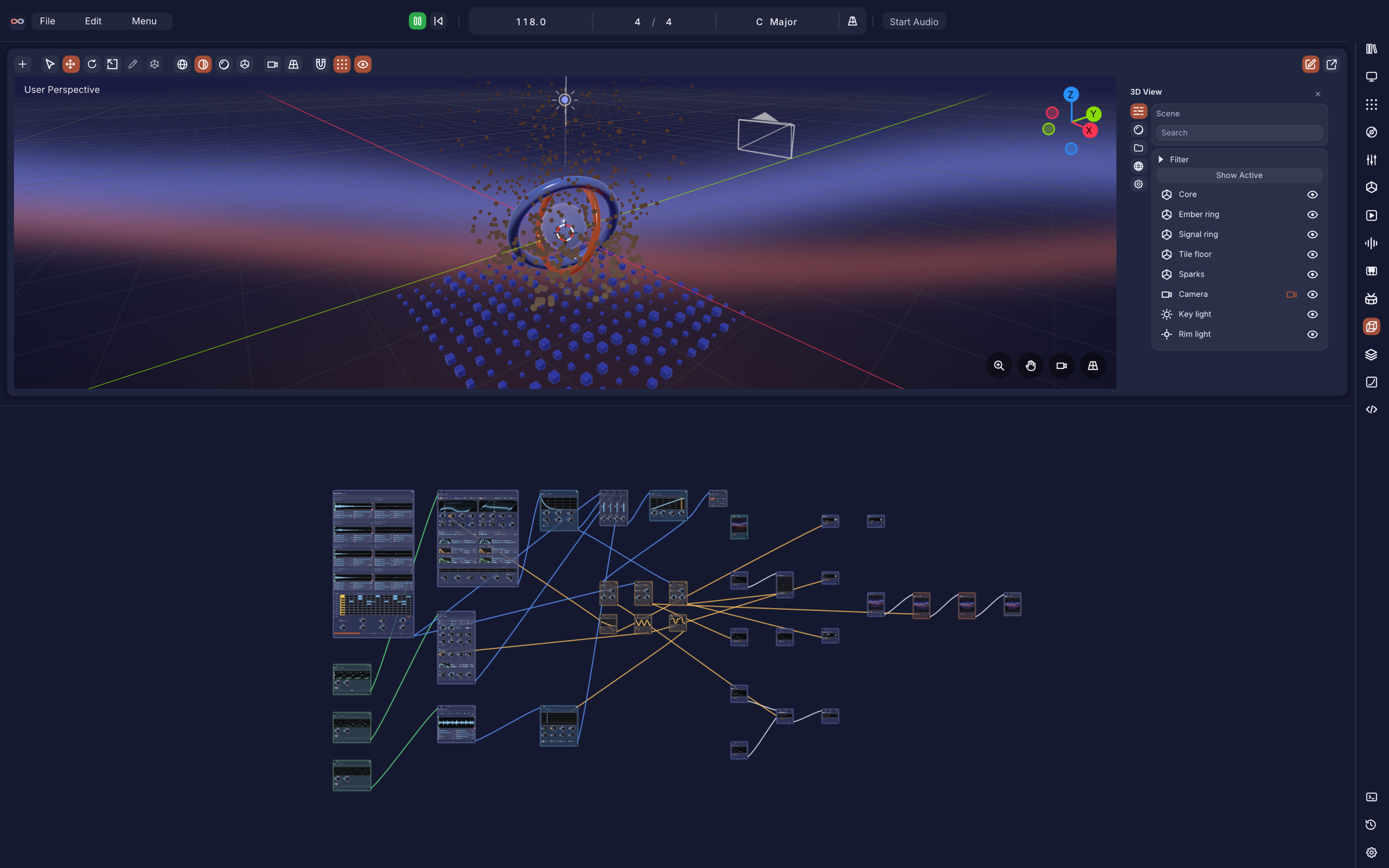
Setting up a real-time 3D scene inside an audio-visual graph often means learning an unfamiliar viewport control scheme just to move a camera or place a rim light. In Infinite, 3D View (Shift+3, backed by Scene3DNode) brings a familiar Blender keymap 3D scene composition workflow straight into the modular node workspace, so artists who already know Blender shortcuts can lay out meshes, lights, cameras, and materials without switching applications.
Instead of isolating 3D layout behind an offline export step, 3D View sits directly alongside the patch canvas and modulation curves. Any node parameter in the scene can stay wired to LFOs, audio analysers, or procedural generators in the Infinite node library while you compose shots interactively in the viewport.
Viewport navigation and the Blender keymap
3D View adopts standard Blender transform and camera shortcuts so muscle memory carries over immediately:
- Transform tools: Press
G,R, orSto grab, rotate, or scale selected objects. PressX,Y, orZto lock transforms to a single axis, orShift+X,Shift+Y, orShift+Zto constrain movement to the corresponding plane. - Orthographic and camera views: Use
1,3, and7to snap to front, right, and top views,5to toggle orthographic projection,0to jump intoCamera View, andForHometo frame the selection or scene. - Fly navigation: Hold
Right-dragand steer withWASDQEto fly through larger environments. - Interaction modes: Press
Tabto toggleEdit Mode,Ctrl/Cmd+Tabto enterPoseorSculpt Mode, andWforWeight Paint.
These shortcuts run directly in the 3D View pane (Shift+3), so framing a camera or nudging a light target takes a couple of keystrokes rather than hunting through nested inspector fields.
Eight side tabs in 3D View
The right-hand sidebar of 3D View organises scene controls into eight vertical tabs:
- Scene: Outliner view listing meshes, cameras, lights, and visibility toggles in the active
Scene3DNodegraph. - Render: Engine selection and post-processing controls including
Bloom,Motion Blur, and colour management. - Output: Render resolution and export settings for still frames or video sequences.
- World: Environment background and HDRI lighting setup.
- Object: Transform values, hierarchy, and per-object viewport flags.
- Light / Camera: Contextual parameters for whichever light or camera is currently selected.
- Material: Principled BSDF surface properties and texture slot assignments.
- Viewport: Shading mode, grid overlays, and navigation preferences.
Keeping these eight tabs anchored beside the viewport keeps layout, lighting, shading, and output choices in one place while the node graph below stays focused on signal routing.
Six light types, Kelvin colour, and light linking
Lighting in Scene3DNode supports six light types: Directional, Point, Sun, Ambient, Spot, and Area. Rather than relying purely on arbitrary RGB sliders, lights expose correlated colour temperature in Kelvin across 800..20000 K, making it straightforward to balance warm tungsten accents against cool sky fill.
Each object also supports Light Linking through the Lit by control. You can restrict which lights illuminate specific hero meshes or background elements without duplicating geometry or rendering separate passes, which is especially useful for live visuals and stage-style compositions documented on the Infinite artists page.
Principled BSDF materials and HDRI worlds
Surfaces in 3D View use a Principled BSDF physically based material model with ten dedicated texture map slots:
Base colourRoughnessMetallicNormalAOEmissionClearcoatSheenOpacityTransmission
Global reflections and image-based lighting come from the World tab via EnvironmentNode, which loads .hdr and .exr HDRI maps directly into the scene. Combining an HDRI sky with selective Spot or Area lights gives metallic, transmissive, and clearcoated surfaces grounded specular response without manual reflection probes.
Camera depth of field and render engines
The Camera tab provides physical lens controls including sensor presets and Depth of Field parameters: F-Stop (0.7..128), aperture Blades (3..16), and Anamorphic Ratio for oval bokeh behaviour.
Under the Render tab, you can switch between Raster and Path trace engines depending on whether you are blocking motion or evaluating physically based bounces. On Apple Silicon Macs using Metal, 3D View also provides Live and Live + settle modes so interactive edits stay responsive and then refine cleanly when the camera stops moving. Final output passes through Bloom, Motion Blur, and Colour Management transforms with ACES, AgX, Reinhard, and Neutral view options. You can compare hardware throughput across configurations on the Infinite benchmarks page.
Honest limits
- Composition over full modelling:
3D Viewcomposes, lights, shades, and renders scenes in Infinite rather than replacing full polygon modelling suites. - Platform render modes:
RasterandPath traceengines are available in3D View, whileLiveandLive + settleprogressive modes apply on Metal. - Light linking and node scope: Scene lighting,
EnvironmentNodeHDRIs, and Principled BSDF material slots are configured insideScene3DNodeand the eight3D Viewtabs for scene assembly and output rendering.