
3D node
3D View
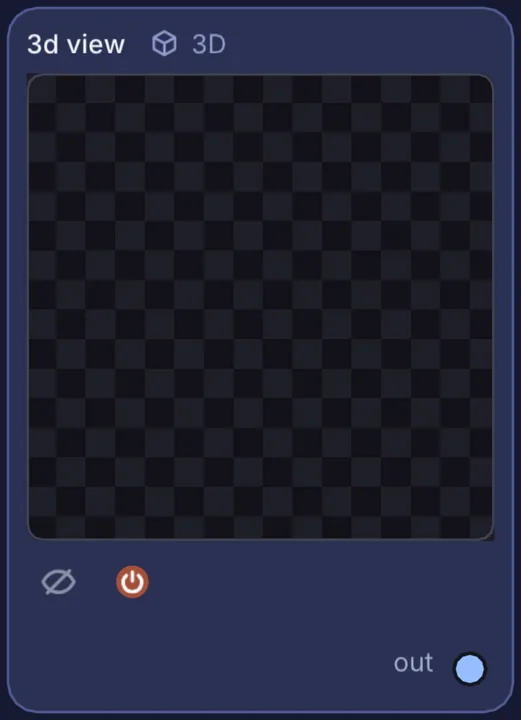
The final stage of a 3D patch: it holds the objects you bring in and renders them to a picture. Right-click any 3D node and choose Add to 3D View, then arrange it in the 3D View panel (G moves, R rotates, S scales; Shift+3 opens the panel). Its settings are the picture's: Width and Height (1920 by 1080 by default), Samples for anti-aliasing (default 2), Shadows, Exposure, Bloom, ambient occlusion, depth of field and motion blur. Projection options include a dome, a fisheye and a lat-long panorama (Lat and Lon min and max). An optional path-traced Engine takes Path Samples (default 128) and Bounces (default 6). It stays transparent until you set a world in its World tab. F12 renders a picture through an Output node. Everyday use: the camera and render settings for a 3D scene. Also called a 3D viewport or a 3D stage.
What it does
3D View is a 3D node: it builds, changes or lights geometry that Render 3D turns into a picture. It has no input and gives picture out, so it starts a chain.
Try it
Add a cube and a sphere to the 3D View, turn on Shadows and Bloom, then press F12 through an Output node.
Inputs and outputs
Inputs
- None. It starts a chain.
Outputs
- picture out
Example patch
This patch wires 3D View to what it needs and shows the result. Download it, then use File, Open in Infinite, or read it here: it is plain text.
infinite-patch 1
rev 2
# 3D View: a starting patch for the 3D View node
node 1 3D 3D View
  id node
  pos 520 300
end
node 2 Utility Output
  id out
  pos 1080 300
end
cable out 0 node